
Signing in
Once you have an account, open https://<vps-ip>:2610/login.
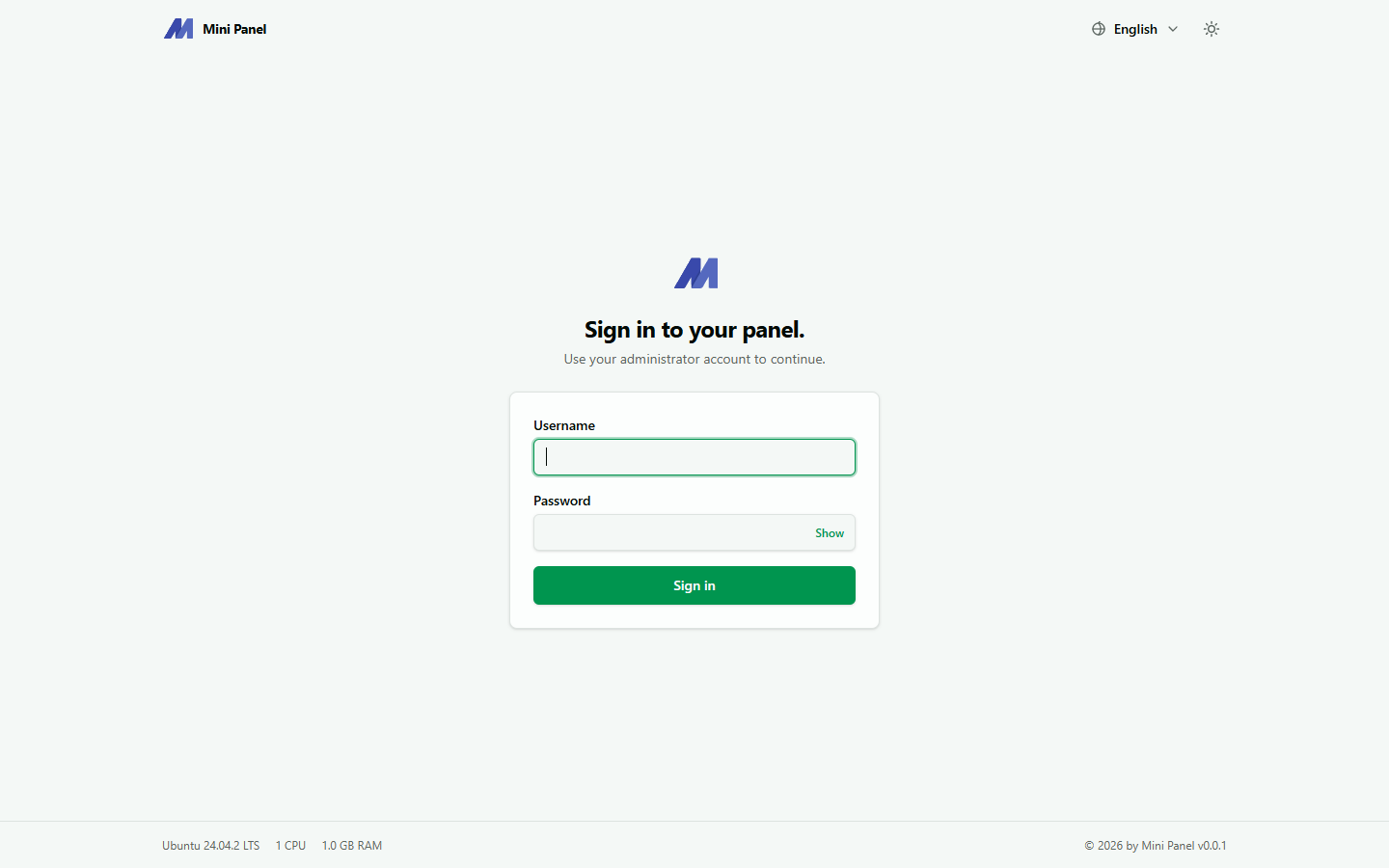
Regular sign-in
Section titled “Regular sign-in”Enter your username and password, then click Sign in.
After too many failed attempts, the panel temporarily blocks sign-in attempts from your IP address for a few dozen seconds — a built-in guard against password guessing, with no need for a separate fail2ban jail on the login page itself (fail2ban is still used on the Security page for SSH).
Signing in with two-factor authentication (2FA)
Section titled “Signing in with two-factor authentication (2FA)”If you’ve enabled 2FA in Account settings, after entering the correct password the panel shows an extra step asking for the 6-digit code from your authenticator app (Google Authenticator, Authy…).
This step has a time limit: wait too long or enter the wrong code too many times, and the sign-in session expires — you’ll have to enter your password again from the start.
Forgot password
Section titled “Forgot password”Mini Panel has no “forgot password” email flow, since the panel doesn’t require a mail server. To reset your password if you’re locked out, SSH into the VPS as root and run:
mpn web passwdThis prompts for a username and new password directly in the terminal, overwriting the existing account.