
Files
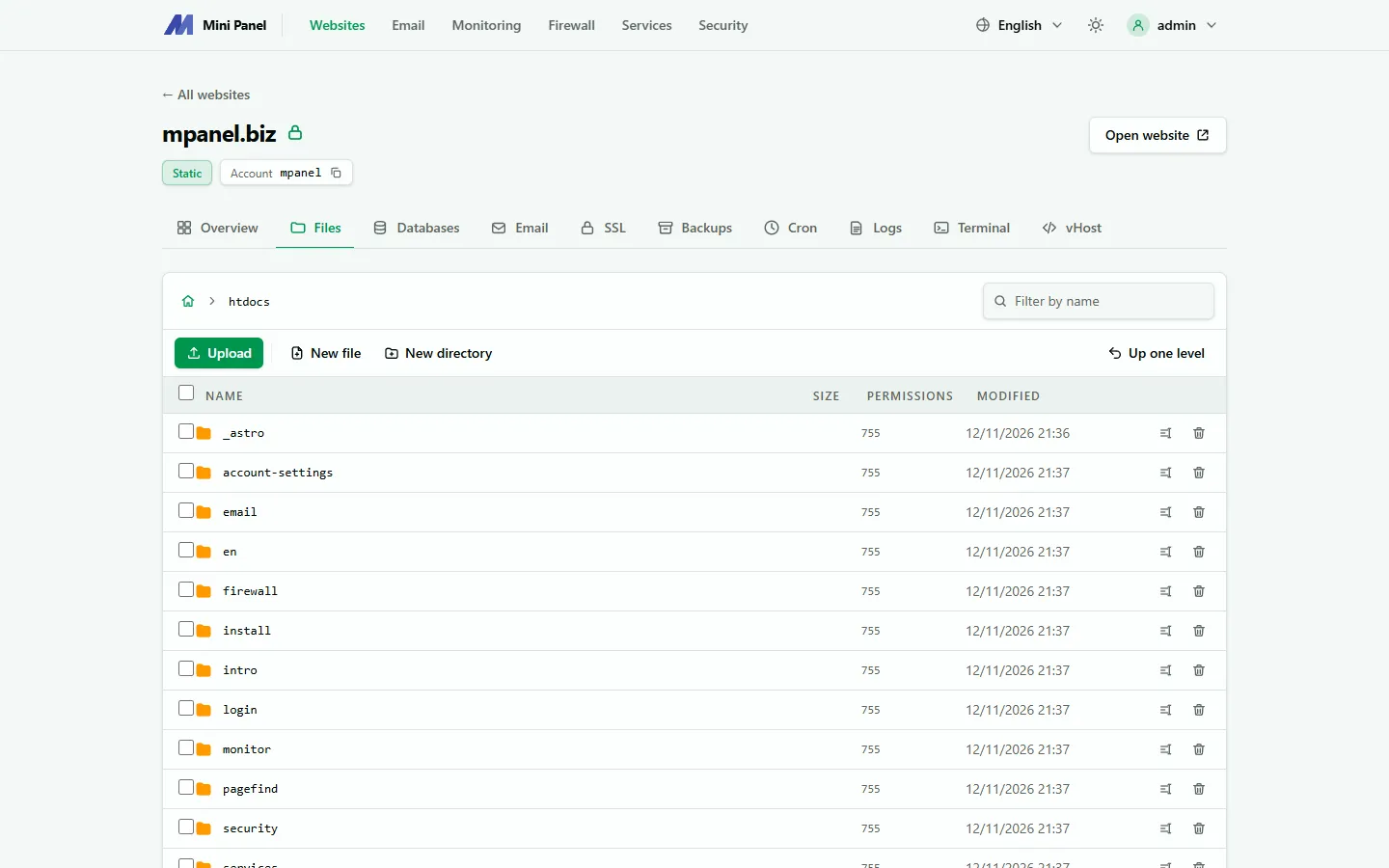
The Files tab is the website’s file manager. Every action runs as the website’s system account over SFTP, so it can only touch that website’s files and has exactly that account’s permissions.
Requirements
Section titled “Requirements”The Files tab needs SSH/SFTP login enabled for the website, see SSH/SFTP. If the panel says it cannot sign in as the website account, open the SSH/SFTP card and check the panel key.
Browsing
Section titled “Browsing”- The path bar at the top shows the open directory. Click part of the path to go back to it, or click Up one level.
- Click a directory name to open it. Click a text file name to edit it.
- Filter by name hides entries that don’t match what you type.
- Click the Name, Size or Modified column header to sort.
Each directory shows up to 5,000 entries. If there are more, the panel says so; use the Terminal or SFTP to see them all.
Creating and uploading
Section titled “Creating and uploading”- New file and New directory create an entry in the open directory.
- Upload opens a file picker. You can also drag files onto the page. A progress bar shows while uploading. Tick Overwrite existing files to replace files with the same name.
Each upload can be up to 1 GB.
Selecting several entries
Section titled “Selecting several entries”Tick the box at the left of each row, or the box in the table header to select all. When entries are selected, a toolbar appears with Cut, Copy, Compress selected, Change permissions and Delete. Click Clear selection to cancel.
Right-click menu
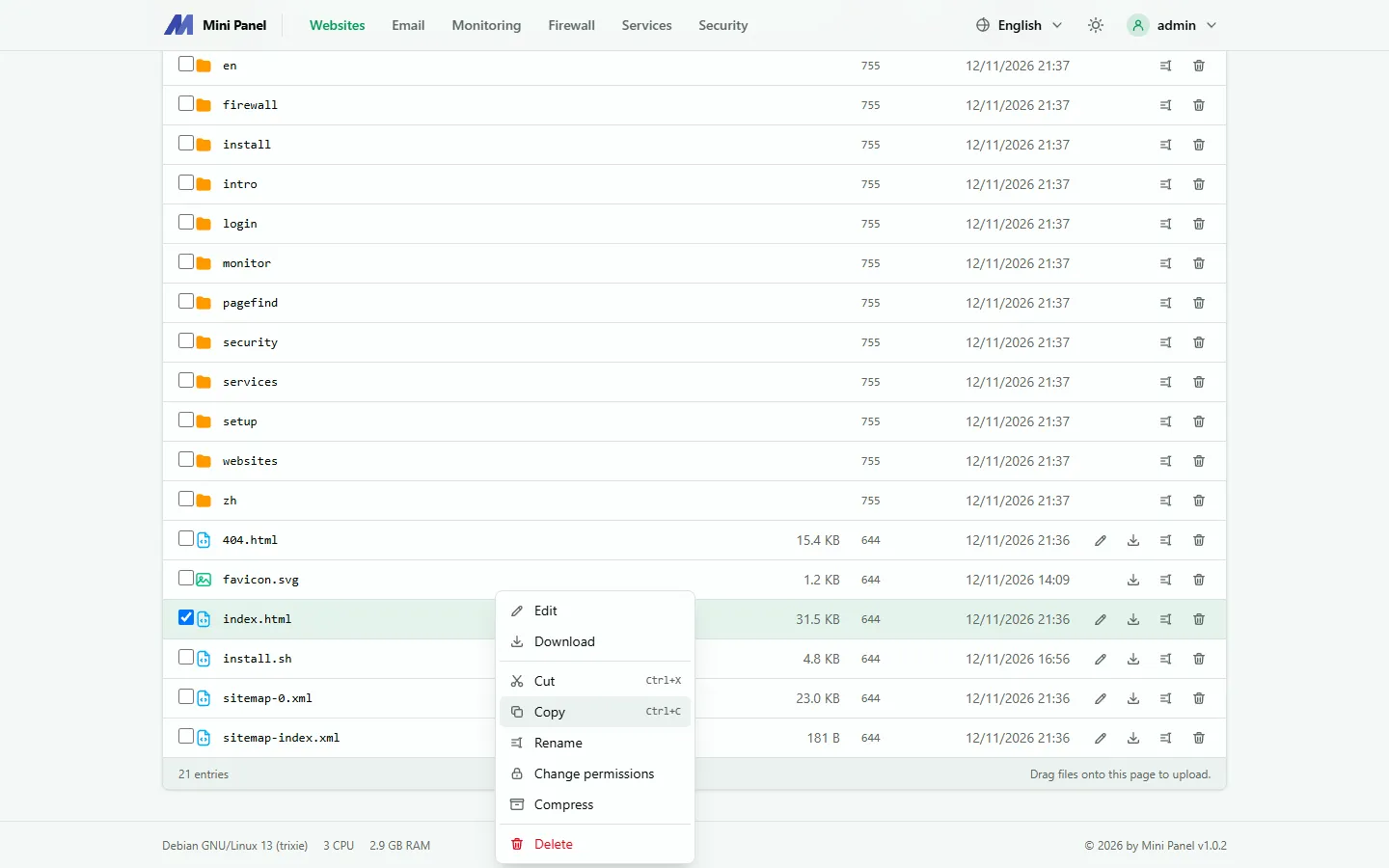
Section titled “Right-click menu”Right-click an entry to open its menu. The menu depends on the entry: files have Download (text files also have Edit, ZIP files also have Extract), directories have Open. Right-click an empty area for Upload, New file, New directory, Refresh and Paste.
Cut, copy and paste
Section titled “Cut, copy and paste”- Select one or more entries, then choose Cut or Copy (from the toolbar, the right-click menu or a shortcut).
- Open the target directory. A bar above the table shows how many entries are waiting to be pasted.
- Click Paste N entries here, or right-click a directory and choose Paste to paste into it.
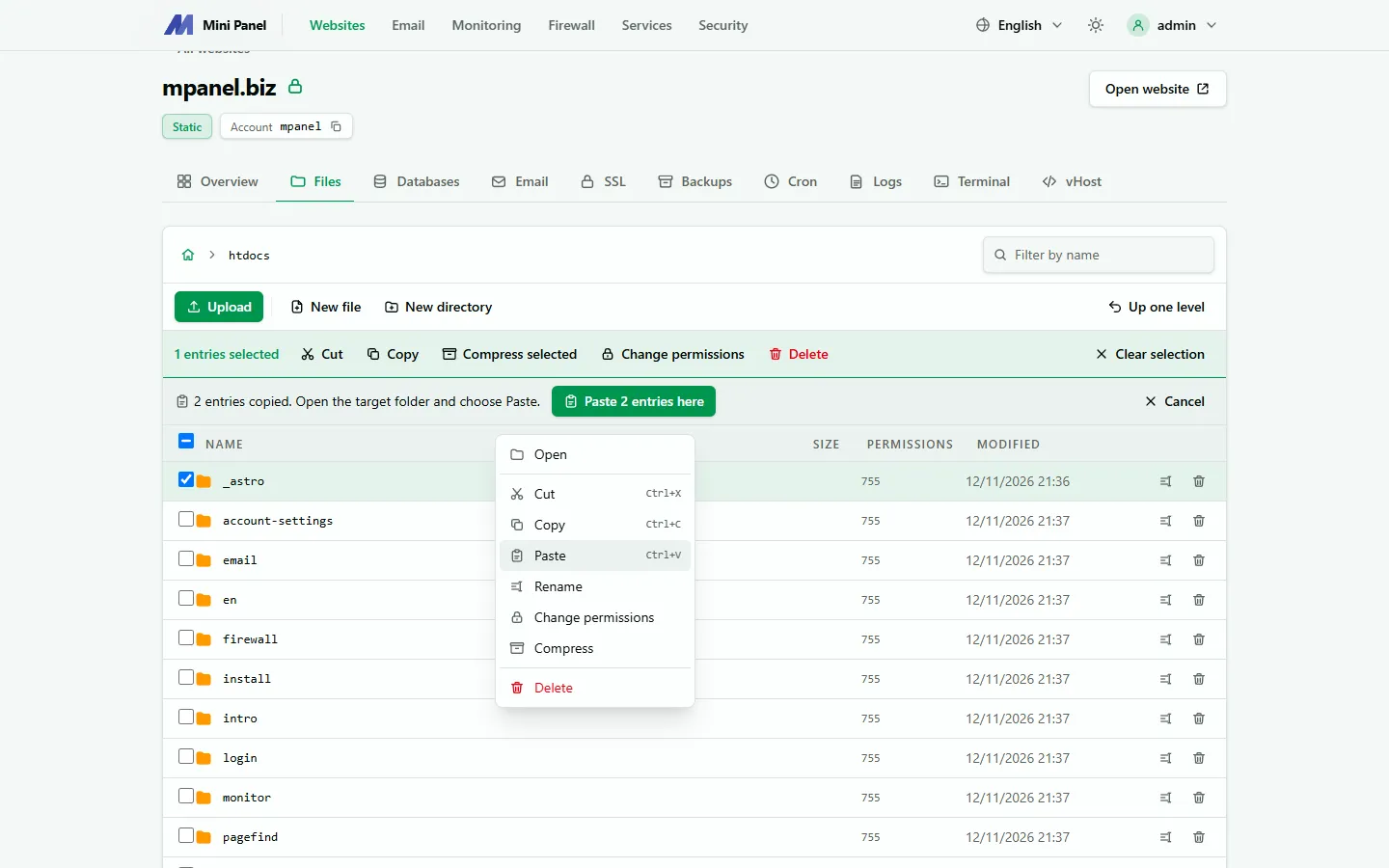
Cut moves the entries, Copy makes copies. Click Cancel on the paste bar to drop them. The waiting list lives only in the open browser tab and works only within the same website.
A directory cannot be pasted into itself or into one of its subdirectories. If an error happens partway, the panel reports how many files and directories it processed before the error.
Editing files
Section titled “Editing files”Choose Edit to open the file in an editor with syntax highlighting. Press Ctrl+S to save. The panel only opens text files under 2 MB.
If the file was changed elsewhere after you opened it, the panel does not overwrite it straight away and tells you. Your edits stay on the page; save again to overwrite.
Compressing and extracting
Section titled “Compressing and extracting”- Compress (or Compress selected) creates a ZIP file in the open directory. You choose its name.
- Extract unpacks a ZIP file into the open directory. Tick Overwrite when extracting to replace existing files.
The panel skips links and special files inside a ZIP, and refuses ZIP files that would write outside the target directory.
Changing permissions
Section titled “Changing permissions”Change permissions opens a dialog with nine boxes (read, write and execute permissions for the owner, group and others) or an octal field such as 644. For directories you can apply the change to their contents recursively, choosing files only, directories only or both. Common values: files 644, directories 755.
If the website account is not in a directory’s group, the system may remove its setgid bit when permissions change. The panel tells you when this happens.
Keyboard shortcuts
Section titled “Keyboard shortcuts”Shortcuts work only when you are not typing in a field.
| Key | Action |
|---|---|
| F2 | Rename the selected entry |
| Delete | Delete the selected entries |
| Ctrl+X | Cut |
| Ctrl+C | Copy (when no text is selected on the page) |
| Ctrl+V | Paste into the open directory |
| Esc | Close the menu, clear the selection |